
Finding your way around the screen
The sidebar, the top bar, the search box, the sync pill and the footer — what each part is for.
2 min read
Every screen in Fikacare has the same frame, so once you know it you know your way around every module.
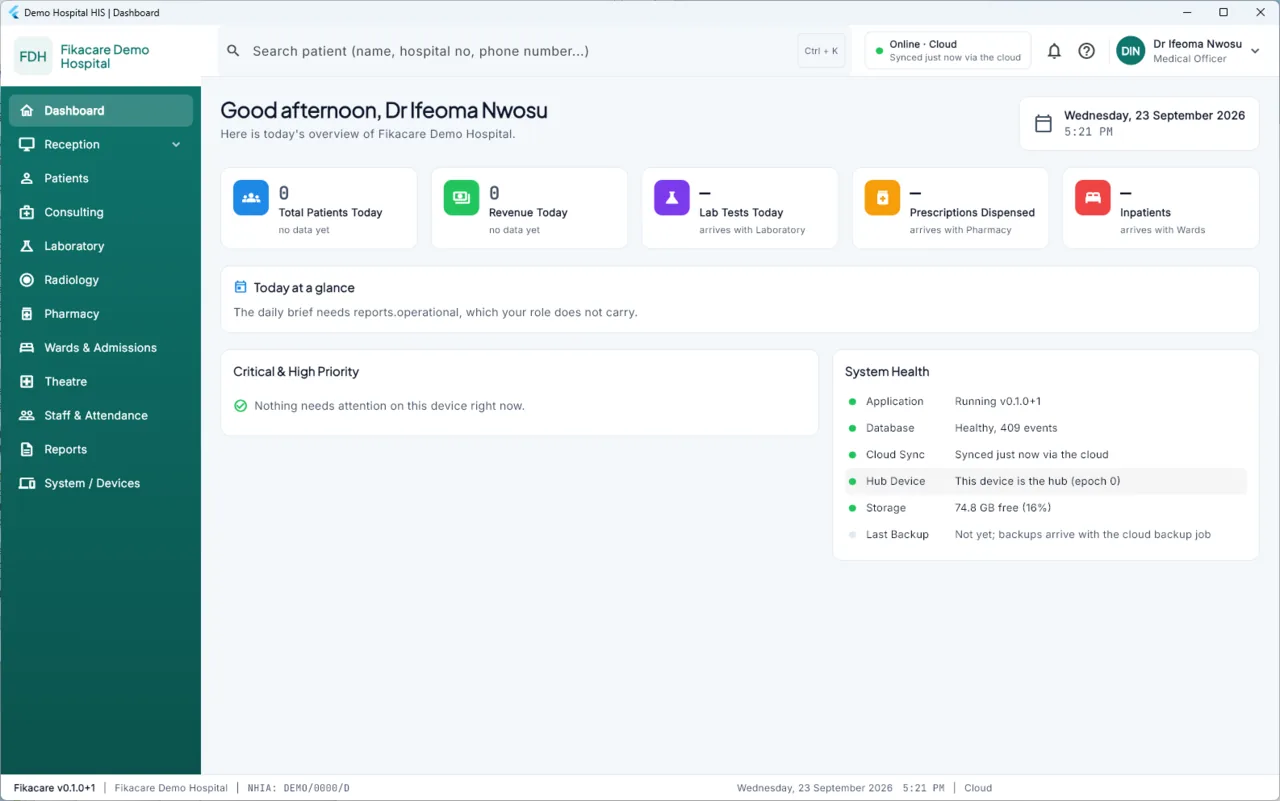
The sidebar, on the left
Your hospital's name and initials at the top — Fikacare's own name is not there, because this is your hospital's system.
Below it, the modules you can use on this machine. You will not see every module, and that is normal: the list is what your role allows, on a machine set up for this kind of work, within your hospital's plan. See Who can see what.
Reception has sub-items beneath it — Register Patient, Patient Queue, Appointments — that open when you choose it.
The top bar
The search box. Search any patient by name, hospital number or phone
number. Press Ctrl + K from anywhere to jump straight into it. This is the
fastest way to get to a patient, and much faster than going through Patients.
The sync pill. A coloured dot and a line like "Online · Cloud · Synced just now via the cloud". This is the state of this machine. Read it before trusting a list that other machines contribute to. See Reading the banner.
Notifications and help, then your name and role on the right. Choosing your name gives you sign out.
The footer
Quiet, but useful when something is wrong and you are on the phone to whoever supports the system. It shows the version of the software, your hospital's name and NHIA number, the date and time as this machine sees them, and which rung of the sync ladder the machine is on.
The banner, under the page heading
On screens that show information other machines contribute to, a coloured strip repeats the sync state where you cannot miss it. On allergy, current-medication and critical-result views it is stricter and cannot be dismissed.
Getting around quickly
| To do this | Do this |
|---|---|
| Find a patient | Ctrl + K, then type a name, hospital number or phone number |
| Go back | The Back to … link under the top bar, not the browser — this is not a browser |
| See what a figure is made of | Choose the figure. Almost every number opens into the records behind it |